Niagara Launcher ‧ Home Screen
Personalization · Mellowdrop Studio

Niagara Launcher ‧ Home Screen screenshots


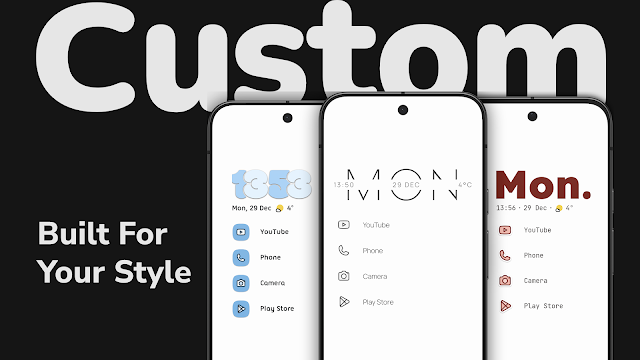


If your home screen has turned into a crowded grid of icons you scroll past without thinking, Niagara Launcher is built for you. It is a minimalist replacement for the default Android home screen, made by Mellowdrop Studio, and its whole pitch is that a phone should be easier to reach and easier to leave alone. The app is free to download, carries no ads, and has been installed more than 10 million times, holding a 4.8 average across 246,060 ratings.
What that gives you is a home screen organized around one-handed use. Apps are reached through a wave-style alphabet rather than a wall of icons, notifications can be read and answered without opening each app, and widgets for the calendar and weather sit alongside a stack that holds up to four at once. Nothing here is trying to impress you with density; the aim is fewer taps and less clutter.
The phone in one hand, not two
The strongest argument for this launcher is ergonomics. Phones have grown tall, and the Wave Alphabet is designed so the apps you want are reachable with a thumb rather than a stretch to the top corner. Reviews quoted by the developer describe it as suited to big and folding phones, and that matches what the feature set is doing: it assumes you are holding the device one-handed and moving through it quickly.
That makes it a good fit if you use a large handset, if you often have something else in your other hand, or if you simply prefer not to shuffle your grip to open an app. It is also a reasonable choice for anyone who wants a home screen that looks deliberate rather than accumulated, since themes, wallpapers, icons and clock styles are all part of the package.
Where it asks something of you is in unlearning the grid. A launcher like this changes where things live, and the payoff comes from accepting its way of arranging apps rather than rebuilding your old layout inside it. If you like the idea of a home screen that does more with less, the adjustment is the point; if you have spent years tuning a dense multi-page setup, that habit is the thing you would be giving up.
Making the screen look like yours
Customization here is broad but structured. You can apply a theme from the built-in collection in a single tap, or work through individual pieces: icon packs for your apps, a wallpaper from the included set, a clock style, and a choice of fonts. Light and dark variants are available, and Material You dynamic theming pulls colors from your wallpaper across Android versions.
The newest addition is Theme Studio, which lets you build your own theme rather than pick one. You can tweak the wallpaper, the icons, the clock and the text, seeing each change as you make it, keep more than one setup, and pass your creations on to friends or the community. That last part turns customization into something you can pass around, which is a meaningful step beyond choosing from a fixed catalog.
That release also brought a new look and the debut of Mellowdrop Studio as a standalone software house. For anyone weighing whether to commit to a launcher, that context matters, and the developer also points to backup and restore so a setup can move with you when you change phones.
Notifications, folders and the small conveniences
The productivity side is where the launcher earns its keep day to day. Notifications appear on the home screen, and you can read and reply to them there instead of opening each app in turn. Advanced search covers contacts, web searches and quick calculations, so a question or a sum does not require switching context.
Organization is handled with pop-up folders, which group apps without spreading them across the screen, and with the ability to hide apps you do not need, keeping the drawer short. Gestures add another layer: a double-tap to turn off the screen is the example the developer gives. A calendar widget and a weather widget cover the two pieces of information most people check without opening anything.
The widget stack is the quiet winner for anyone who wants information on the home screen without a cluttered arrangement. Up to four widgets can share the same space, so a calendar, weather and a couple of others do not each demand their own patch of screen.
Tools for using the phone less
Niagara treats screen time as a design problem rather than an afterthought. Usage Breaker sends gentle reminders about apps you open too often, and Notification Summary bundles the less important alerts so they arrive together instead of interrupting you all day. Combined with a simplified home screen, the effect is a phone that is easier to put down.
This is the part I would point to for anyone who has tried to cut back on phone use and found willpower alone unreliable. It reduces the pull of the home screen and gives you a nudge when a habit shows up. For a parent setting up a phone for a teenager, or for anyone who wants fewer reasons to pick the device up, that combination is more useful than a strict blocker.
One technical note worth knowing: the app offers an optional accessibility service whose only job is turning the screen off with a gesture. Nothing is collected or shared, and it stays off unless you turn it on.
What it costs and what that buys
The download is free, and the app contains no ads, which the developer presents as an undisturbed experience even in the free version. Some features sit behind in-app purchases. If you are comparing launchers on cost alone, the free download is the headline here.
My advice is to treat the free download as the decision point. Install it, set up a theme and a widget stack, and see whether the wave-style app list suits how you actually reach for your phone. If it does, the paid options are there to consider later.
How it compares with the alternatives
Most people weighing this up are deciding between three routes: stay with the stock home screen, buy a highly configurable launcher, or pick something minimal. Stock is familiar and free of setup work, but it is not designed around one-handed reach.
A heavily configurable launcher sits at the other end. Those reward tinkering and give you control over nearly every element. Niagara takes the opposite approach: themes, icon packs, fonts and clock styles are all available, yet the structure of the home screen stays simple and the app list stays a single wave.
The closest comparison is with other minimal launchers, and here the deciding factor is usually the app list. Niagara's version is built for the thumb and paired with notification replies, folders and widgets, so it is trying to be minimal without being spartan. If you want a clean screen but still expect to answer messages and glance at a calendar from it, that balance is the reason to choose this over a stricter, plainer option.
A considered pick for a calmer phone
Niagara Launcher is worth installing if you want a home screen that is easier to reach and harder to get lost in. It suits people with large or folding phones, anyone who works one-handed, and anyone trying to reduce how often they pick up their device. The free download, the absence of ads and the 4.8 average across a large body of ratings make it an easy thing to try.
The trade-off is the same one that makes it appealing: a simpler structure asks you to give up the dense, heavily arranged home screen you may have built over the years. Set against that are the theming options, the widget stack, notification replies and the screen-time reminders, all of which have been developed steadily.
If you have been meaning to do something about a cluttered phone, this is a sensible place to start. Install it, give the wave alphabet a fair run, and judge it on whether your thumb reaches what it needs and whether you close the phone sooner than before.
The short verdict
A free, ad-free minimalist launcher for one-handed use and less screen time, best suited to large phones.
What's new in version 1.16.31
✏️️ Create, Share, and Discover Themes With Theme Studio Create your own themes with our new Theme Studio. Customize wallpapers, icons, clock styles, and text with a live preview, save multiple setups, and share them with friends or the community. This update also marks the beginning of our brand refresh and the launch of Mellowdrop Studio, our new independent software studio.
App specs
- Version1.16.31
- UpdatedSeptember 30, 2026
- Downloads10M+
- RequiresAndroid 8.0+
- PriceFree
- Age ratingEveryone
Niagara Launcher ‧ Home Screen: frequently asked questions
What does Niagara Launcher actually change about my phone?
It replaces your Android home screen with a minimalist layout built around one-handed use. Apps are reached through a wave-style alphabet instead of a grid of icons, and notifications can be read and answered directly on the home screen. Themes, icon packs, wallpapers, clock styles and fonts let you shape how it looks.
Is Niagara Launcher free, and are there ads?
The download is free and the app contains no ads, so the free version is not interrupted by them. In-app purchases are offered as well. The free download is the sensible way to judge the fit.
Why does it ask for an accessibility service?
A gesture such as a double-tap lets you switch the phone screen off. Nothing is collected or shared, and it stays off unless you turn it on. You can use the launcher without enabling it.
What is Theme Studio?
Theme Studio is the theme-building tool added in the most recent update. You can adjust the wallpaper, the icons, the clock and the text while watching the result change, keep several setups, and pass them on to friends or the community. It sits alongside the existing one-tap theme collection.
Can I move my setup to a new phone?
Yes. The launcher includes backup and restore, so your home screen arrangement can be transferred when you switch devices.
Pros
- Free to download with no ads
- Built around one-handed reach
- Themes, icons, fonts and wallpapers included
- Notification replies from the home screen
- Usage Breaker and notification summary
Cons
- In-app purchases offered
- Requires learning a new app layout
- Optional accessibility service for screen-off gesture
- Dense multi-page setups do not carry over
Download Niagara Launcher ‧ Home Screen
by Mellowdrop Studio
Free · In-app purchases · Official store listings


